
ChequePrinting.Net 5.9.3
Enterprise Cheque Printing & Management Software

How to create cheque template?
- In menu "Management", choose "Cheque Template List"
- Click the
 icon to create a new cheque template.
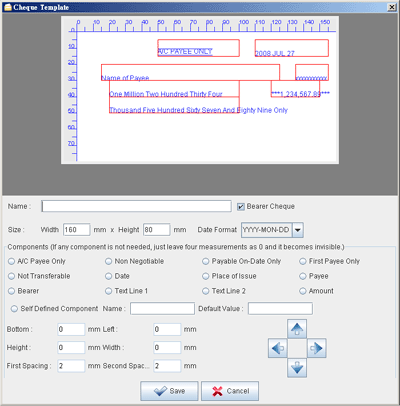
 - A "Cheque Template" window is shown out.
- You need to specify the following information:
- Name - Name of the template for reference purpose.
- Size - The width and height, in mm, of the cheque.
- Date Format - Different date format is available, like YYYY-MM-DD, YYYY-MON-DD, DD-MM-YYYY, etc.
- Component - You need to specify the location (bottom and left) and its size (width and height) for different fields in the cheque. If the field is no need, you can assign all zero to make it invisible.
- Self-Defined Component - To fit special need of some cheque, you can define your own component. You need to provide a name for it. You also need to specify the location (bottom and left) and its size (width and height). You can provide a default value optionally.
- Click the "Save" button when ready.
- The new template will be shown in the "Cheque Template List" window.
How-to Articles
- How to retieve cheque records from an account?
- Batch Printing of Cheques
- Create Cheque Book
- How to create cheque template?
- Create payment voucher for a cheque
- How to Create User Login?
- Choose Different Numbering System
- Customize Cheque Printing
- How to customize the Payment Voucher?
- Where to download cheque template?
- Need help in create cheque template?
- How can I import cheques from file?
- How can I import payee from file?
- Can I store the Payee information?
- How to retieve all the cheque records for a payee?
- How to prepare a cheque?
- How to print a cheque?
Copyright © 2024 Evinco Solutions Limited.